
Challenge Interfaces
Challenge Interfaces are web pages presented to cardholders when a transaction requires authentication. These interfaces are configured per Challenge Method and tailored to each Financial Institution.
Define the structure and layout-what elements appear on the page.
Customise the appearance-colors, fonts, styles, and branding.
Configure different experiences for Browser, App HTML, and App Native.
Key Concepts
What is a Blueprint?
A Blueprint defines the structure and layout of the challenge page:
- Positioning of buttons, input fields, timers, and text
- Which elements are present on the page
- The overall page structure
Blueprints are predefined by Apata and cannot be modified by issuers.
What is a Template?
A Template is an instance of a Blueprint that customises appearance:
- Colors and styles
- Fonts and typography
- Shadows and visual effects
- Logos and branding
Multiple templates can exist for the same blueprint, but only one can be published (live) at a time.
What is a Challenge Interface?
The Challenge Interface is the actual HTML page displayed to the cardholder, generated based on the selected template.
Summary: A Blueprint defines what elements appear. A Template defines how they look.
Creating a Template
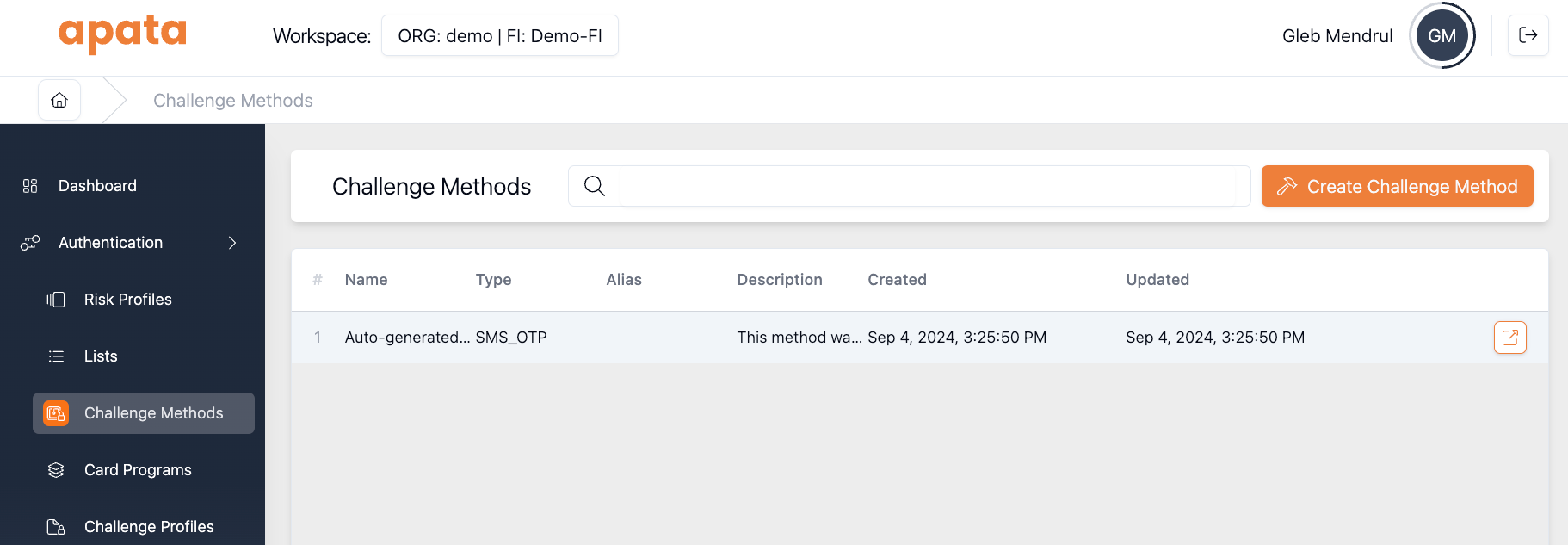
- Navigate to Challenge Methods and select the method you want to customise
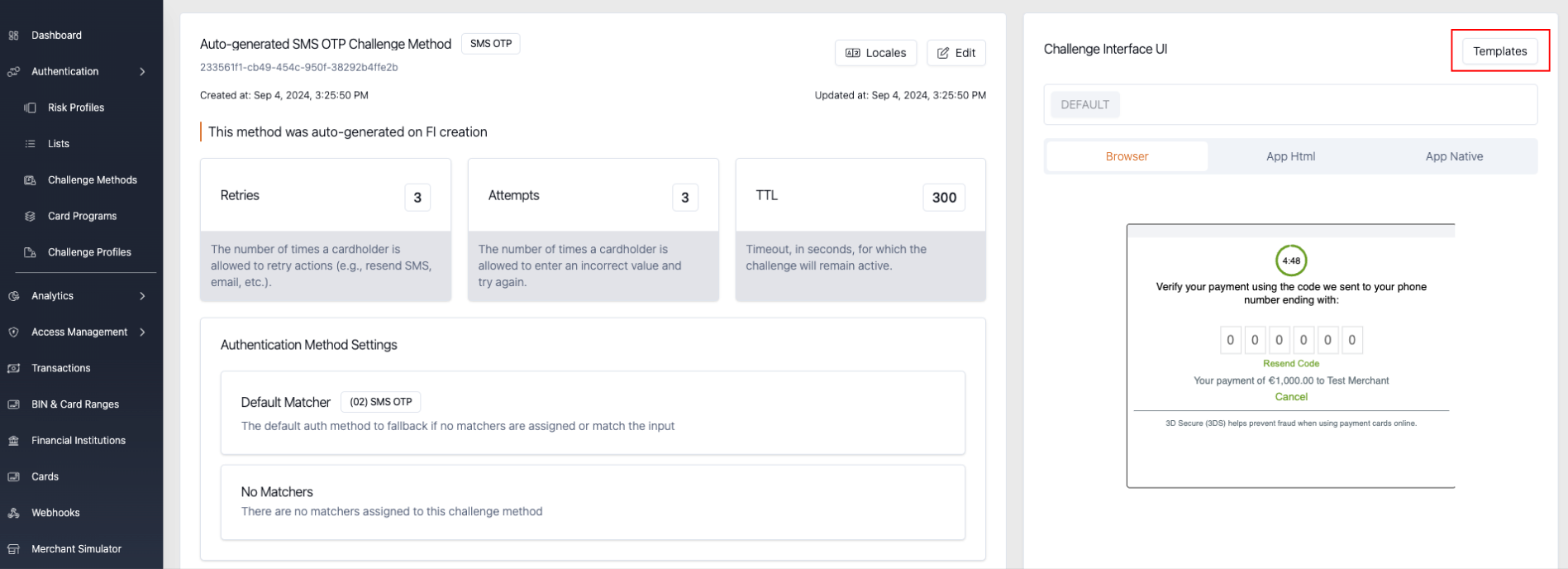
- Click the Templates button
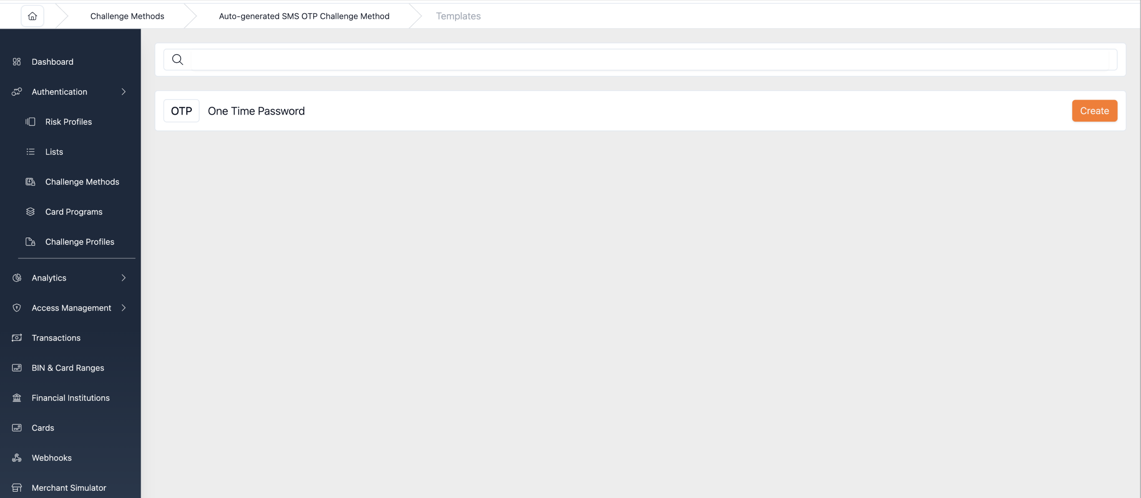
- View the Template Gallery (empty if no templates exist yet)
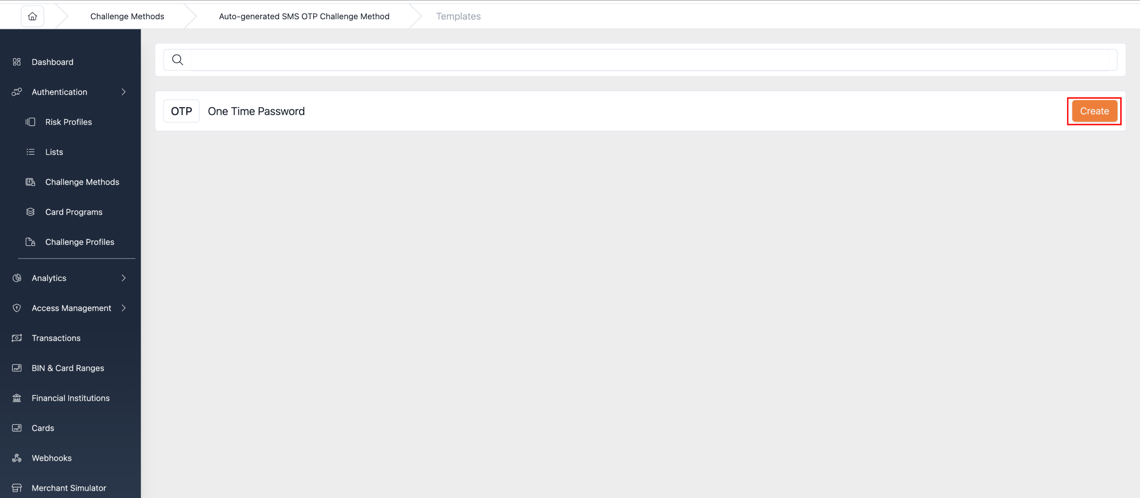
- Click Create to start a new template
- Select a Blueprint from the available options
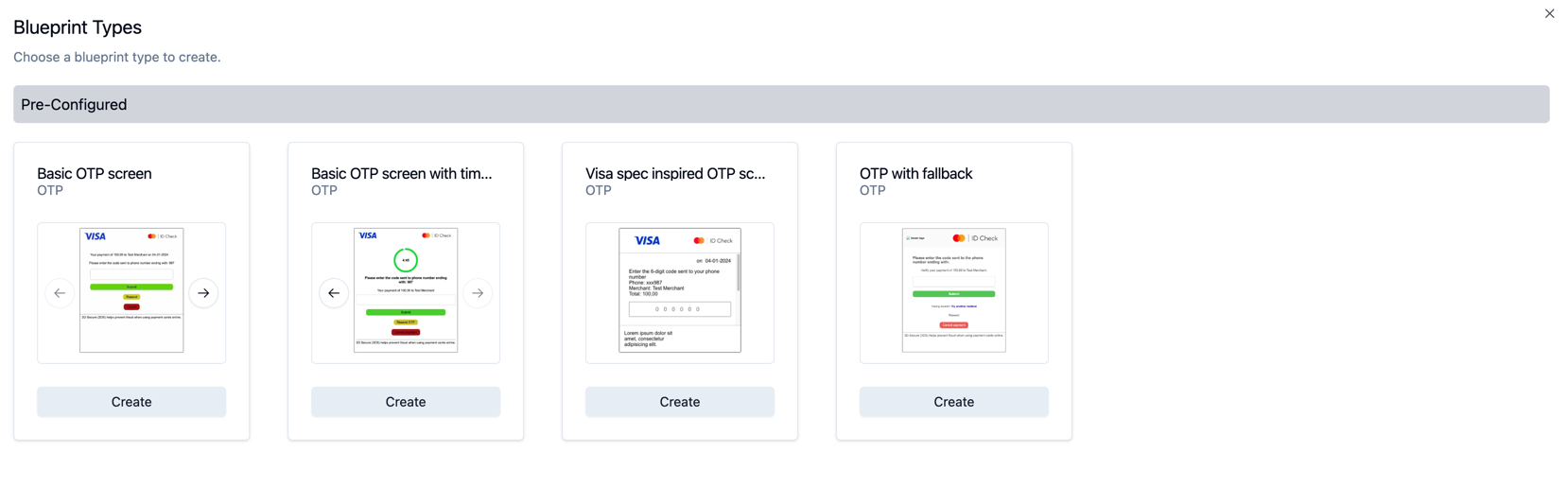
Template Editor
The Template Editor allows you to customise every aspect of the Challenge Interface.
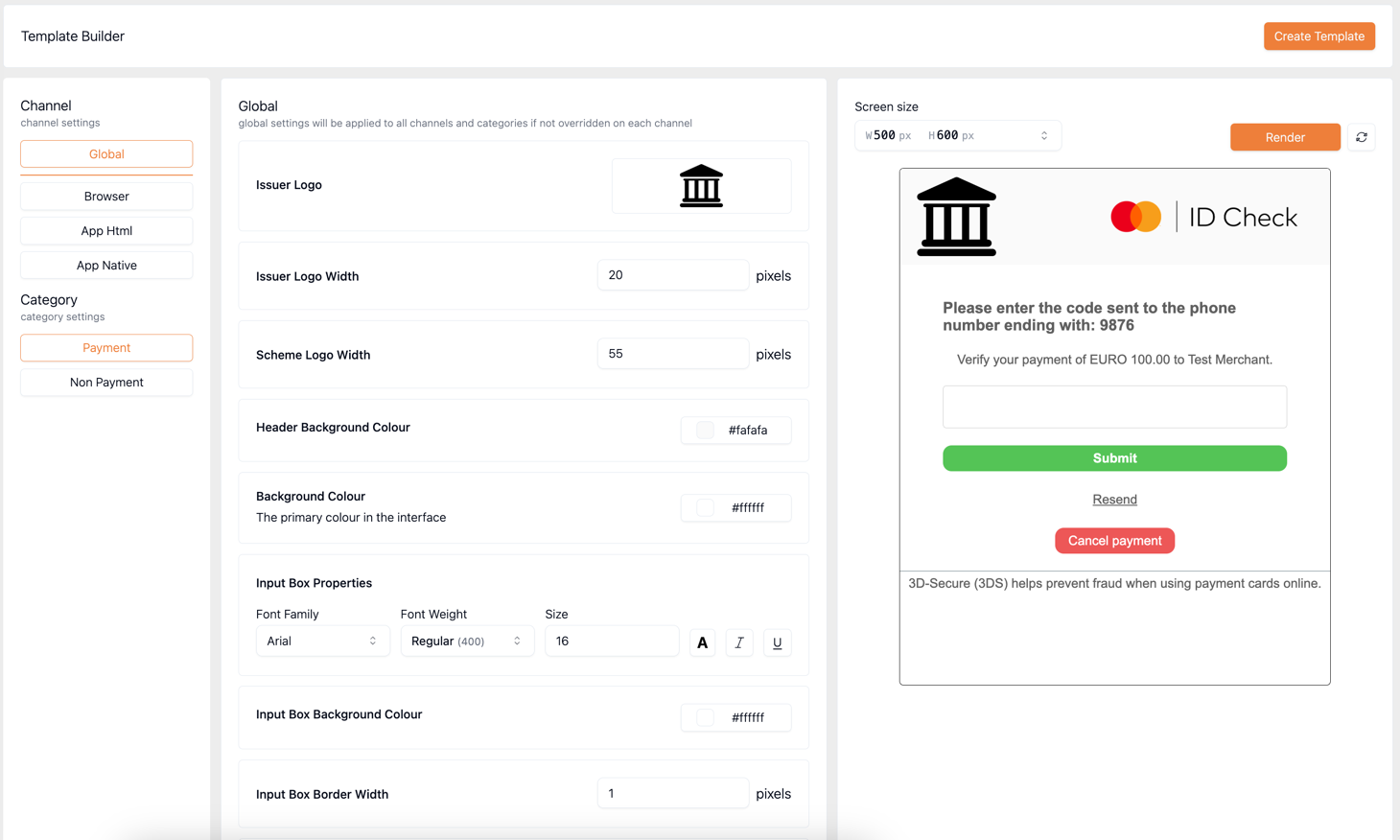
Configure settings for each Device Channel:
| Channel | Description |
|---|---|
| Global | Global settings: button colors, text styles, logos |
| Browser | Locale settings and text for Browser Channel |
| App HTML | Locale settings and text for App HTML channel |
| App Native | Locale settings and text for App Channel (native) |
Configure settings based on Transaction Category:
| Category | Description |
|---|---|
| Payment | Locale settings and text for payment transactions |
| Non Payment | Locale settings and text for NPA transactions |
Important: When modifying text in one section (e.g., "Verify Title" in Browser), ensure you apply the same update to all relevant sections (App HTML, App Native, etc.) for consistency.
Previewing Changes
Click the Render button while editing to preview your changes before saving.
Saving and Publishing
Creating the Template
Once satisfied with your configuration, click Create Template to save.
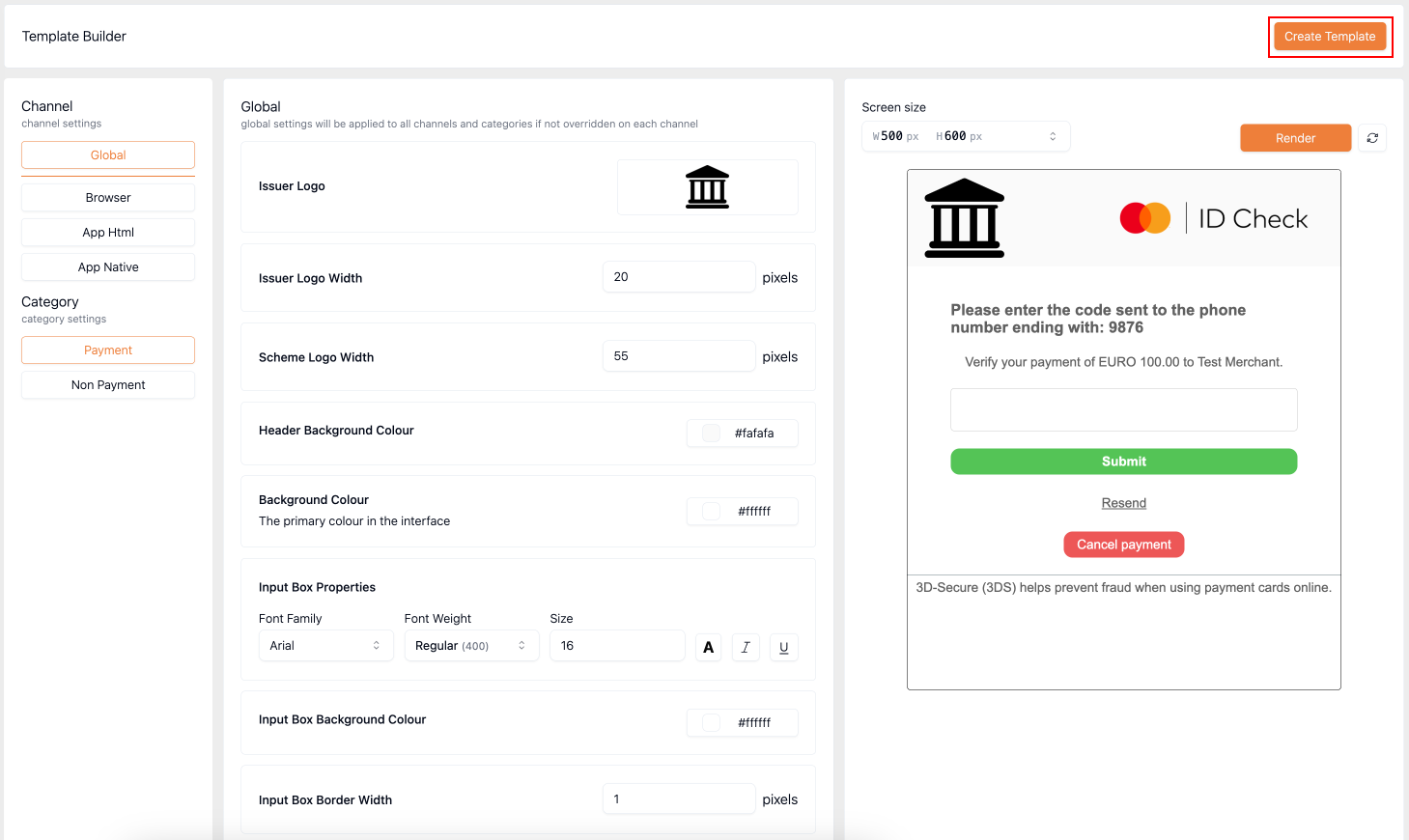
The template is saved but not yet live.
Publishing the Template
Templates are not published by default. You can create multiple templates, but only one can be live at a time.
To make a template active, click the Publish button.
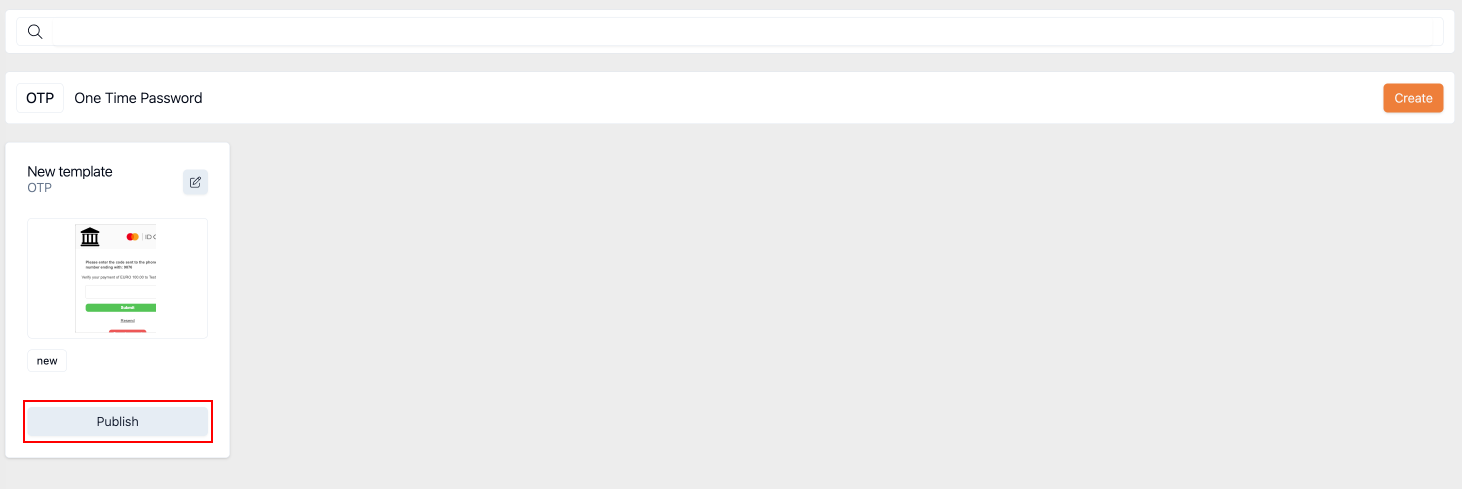
Template Workflow
┌─────────────┐     ┌─────────────┐     ┌─────────────┐
│  Blueprint  │ ──▶ │  Template   │ ──▶ │  Published  │
│  (Select)   │     │  (Create)   │     │  (Live)     │
└─────────────┘     └─────────────┘     └─────────────┘
                           │
                           ▼
                    ┌─────────────┐
                    │   Draft     │
                    │(Unpublished)│
└─────────────┘| Status | Description |
|---|---|
| Draft | Template created but not live-can be edited freely |
| Published | Template is live and displayed to cardholders |
Customizable Elements
Global Styling
- Primary and secondary button colors
- Text colors and fonts
- Background colors
- Logo placement and sizing
- Border styles and shadows
Locale & Text
- Page titles and headings
- Button labels
- Error messages
- Help text and instructions
- All text can be customised per Locale
Layout Elements
Defined by the Blueprint:
- Input fields (OTP, password, etc.)
- Submit and cancel buttons
- Countdown timers
- Information panels
- Branding areas
Related Topics
- Challenge Method – Authentication methods (SMS OTP, Email OTP, OOB, etc.)
- Challenge Profile – Combine multiple challenge methods
- Locale – Language and region settings
- Device Channel – Browser, App, or 3RI channels
Updated 7 months ago