
Merchant Simulator
The Merchant Simulator allows you to generate Test Cards and perform Test Transactions directly from the Portal. This is essential for testing your 3DS configuration without affecting live traffic.
Key Concepts
A card with an auto-generated PAN that fails Luhn validation, ensuring it can never be used for live transactions.
A simulated transaction processed like a live one, but the outcome is not shared with the payment schemes.
Tracks cumulative spend, transaction count, and Whitelisted merchants collected from test transactions.
Prerequisites
Before using the Merchant Simulator:
- Select a Financial Institution in your Workspace
- Ensure you have permission for test transactions (see User Management Guide)
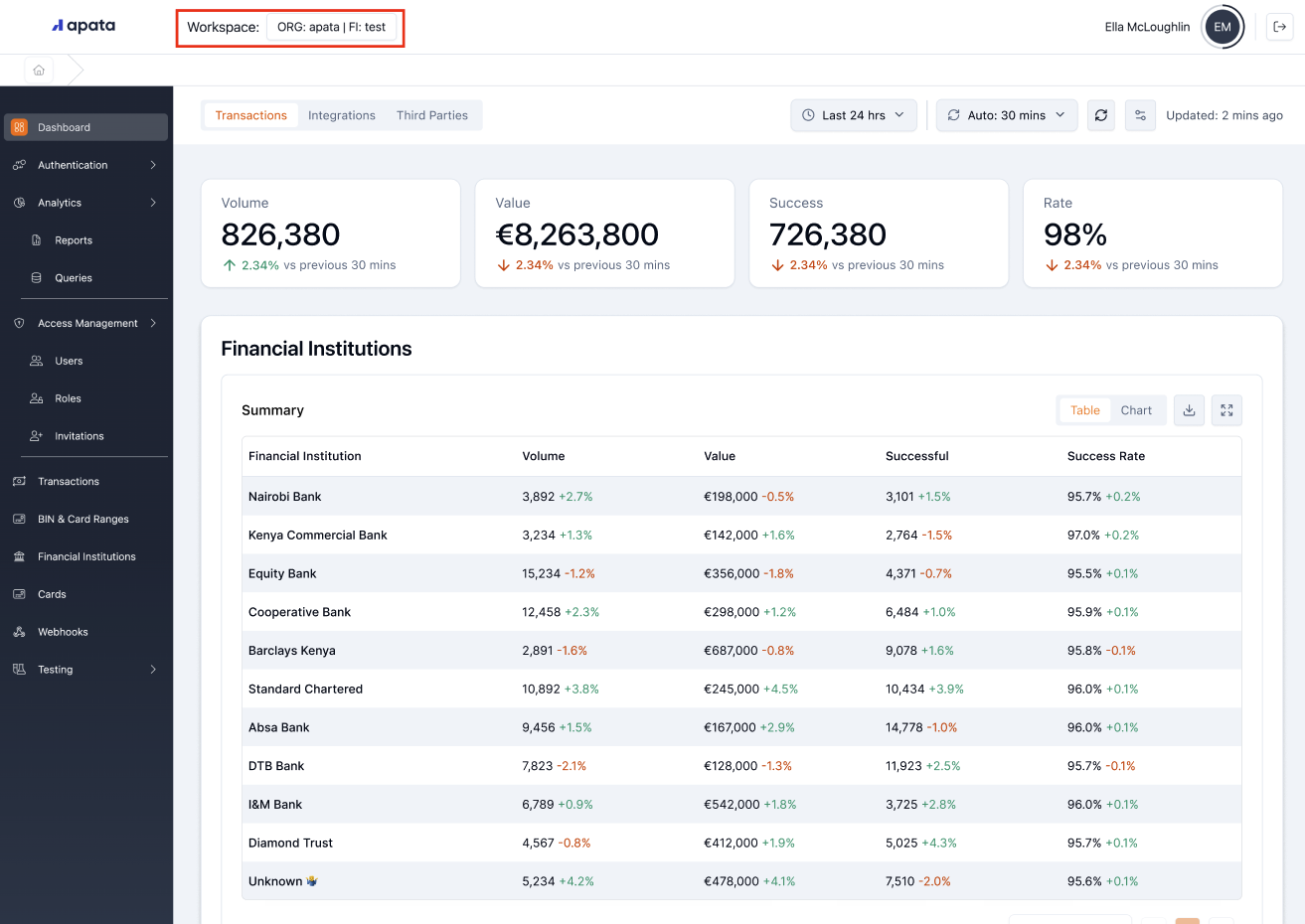
The simulator replicates real transactions, so all ACS resources required for live transactions are also needed here.
Creating a Test Card
- Click Add Test Card
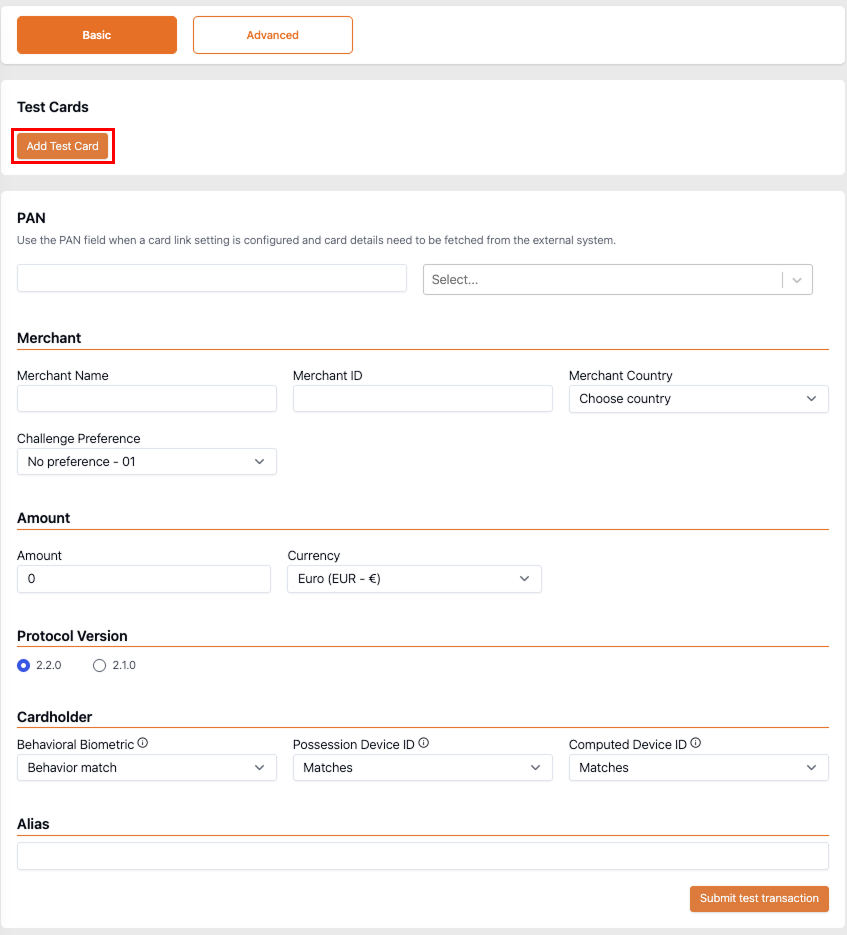
- Select a Card Range and click Generate Account Number
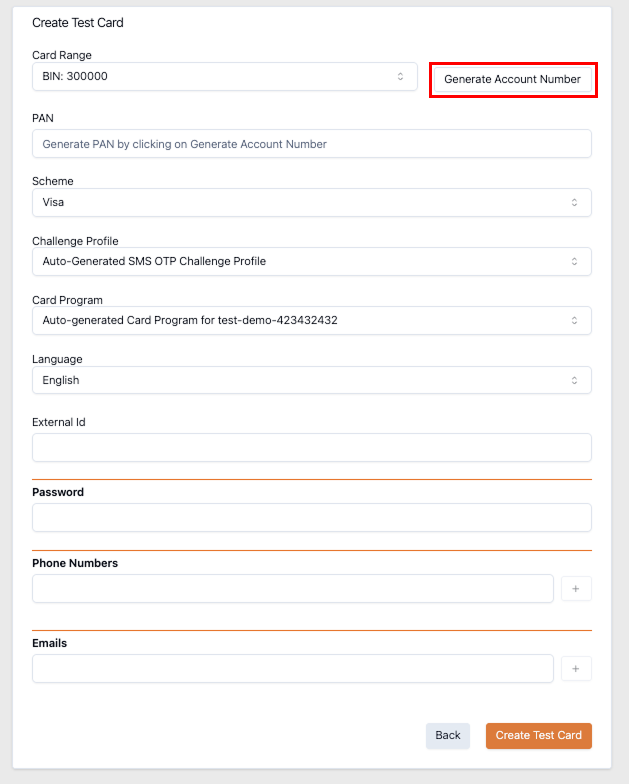
- Complete the form fields
- Click Create Test Card
Test Card Fields
| Field | Description |
|---|---|
| BIN Range | The Card Range within which the PAN will be generated. |
| PAN | Auto-generated. Invalid for live transactions (fails Luhn check). |
| Scheme | Card scheme: Visa or Mastercard. |
| Challenge Profile | Explicitly assign a Challenge Profile, or inherit from the range. |
| Card Program | Explicitly assign a Card Program, or inherit from the range. |
| Language | Determines the Locale displayed on the Challenge Interface. |
| External ID | Used in OOB requests and Finalised Event. |
| Password | For testing Static Password challenge method. |
| Phone Numbers | For testing SMS OTP challenge method. |
| Emails | For testing Email OTP challenge method. |
Once created, Apata treats the Test Card as enrolled. To test Card Link or card-not-enrolled scenarios, use Advanced mode or provide a PAN directly.
To test the Finalised Event, ensure the Finalised Event Test Transaction FI setting is enabled.
Managing Test Card State
The Test Card State section shows:
| Metric | Description |
|---|---|
| Cumulative spend since last challenge | Total amount from previous Frictionless Transactions. |
| Count since last challenge | Number of frictionless transactions conducted. |
| Whitelist | Merchants exempt from Challenge. |
Click Reset State to clear cumulative spend, count, and whitelist.
Running Test Transactions
Step 1: Select Test Card
Click Select on your Test Card to view its details, state, and transaction history.


Step 2: Complete the Transaction Form
Transaction Fields
| Field | Description |
|---|---|
| Merchant Name | Merchant name, mapped to merchantName in AReq. |
| Merchant ID | Merchant identifier, mapped to acquirerMerchantID in AReq. |
| Merchant Country | Merchant country, mapped to merchantCountryCode in AReq. |
| Amount | Purchase amount (auto-converted to minor units). |
| Currency | Purchase currency, mapped to purchaseCurrency in AReq. |
| Protocol Version | 3DS Protocol Version, e.g. 2.2.0. |
| Challenge Preference | Merchant's Challenge Preference indicator. |
| Alias | Optional name for your test case reference. |
Challenge Preference Values
| Code | Description |
|---|---|
| 01 | No Preference |
| 02 | No Challenge Requested |
| 03 | Challenge Requested: 3DS Requestor Preference |
| 04 | Challenge Requested: Mandate |
| 05 | No Challenge Requested (TRA already performed) |
| 06 | No Challenge Requested (Data Share only) |
| 07 | No Challenge Requested (SCA already performed) |
| 08 | No Challenge Requested (Whitelist exemption) |
| 09 | Challenge Requested (whitelist prompt if challenged) |
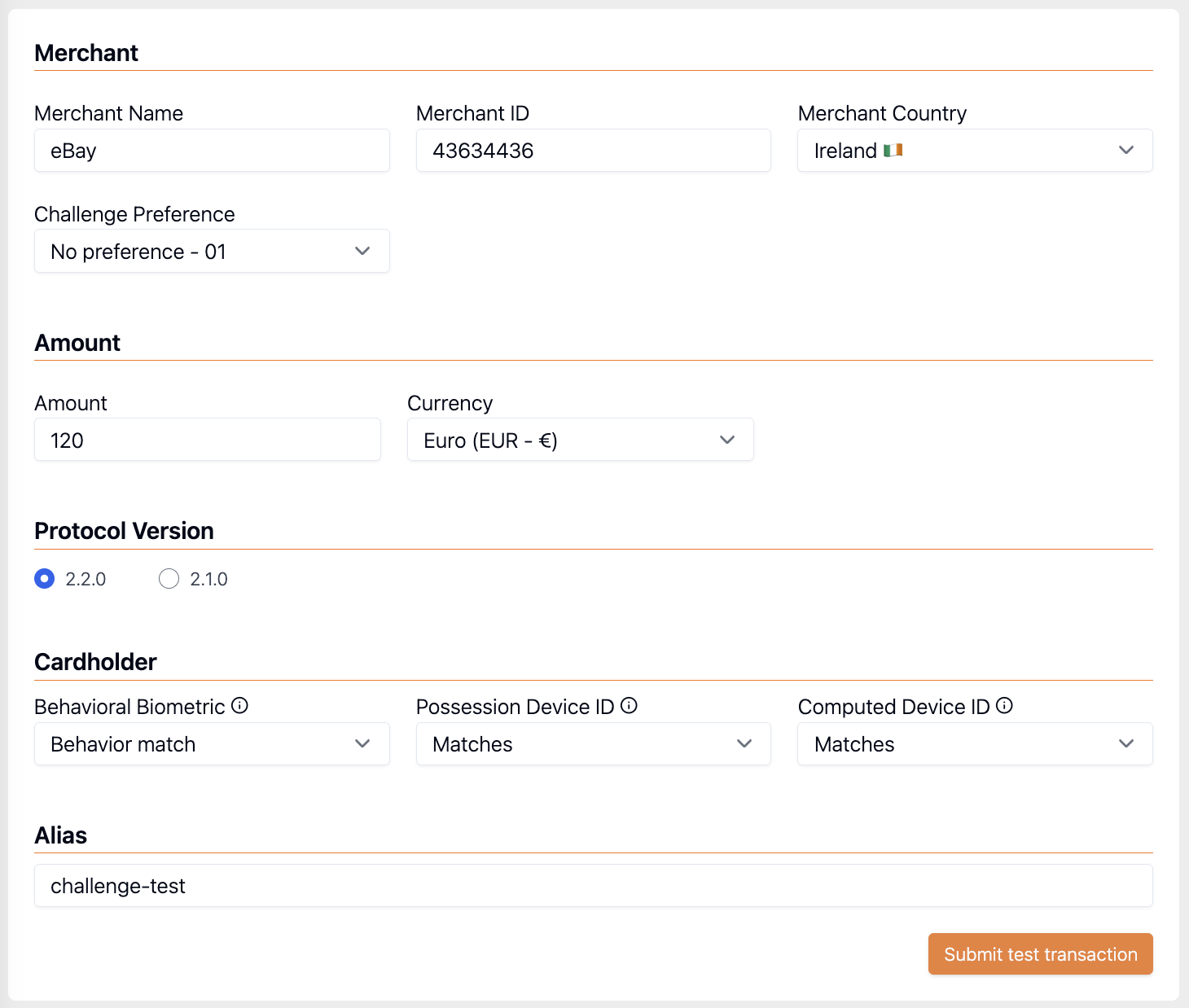
Step 3: Submit and Review
- Click Submit Test Transaction
- If frictionless: transaction appears in history
- If challenged: Challenge Interface is displayed
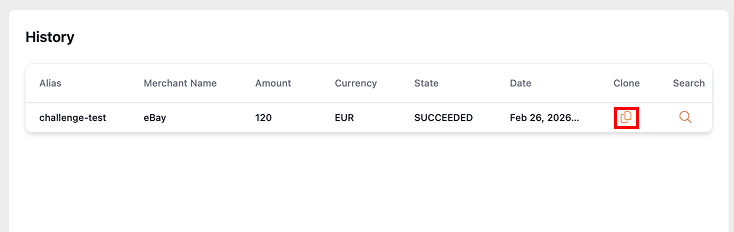
- Click Search to view full transaction details
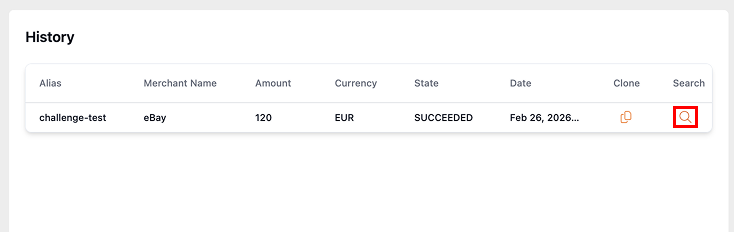
- Click Clone to repeat the same transaction
Transactions take a few minutes to appear in history.
To test Card Link functionality:
- Do not create or select a Test Card
- Enter a PAN directly in the PAN field
- Submit the transaction
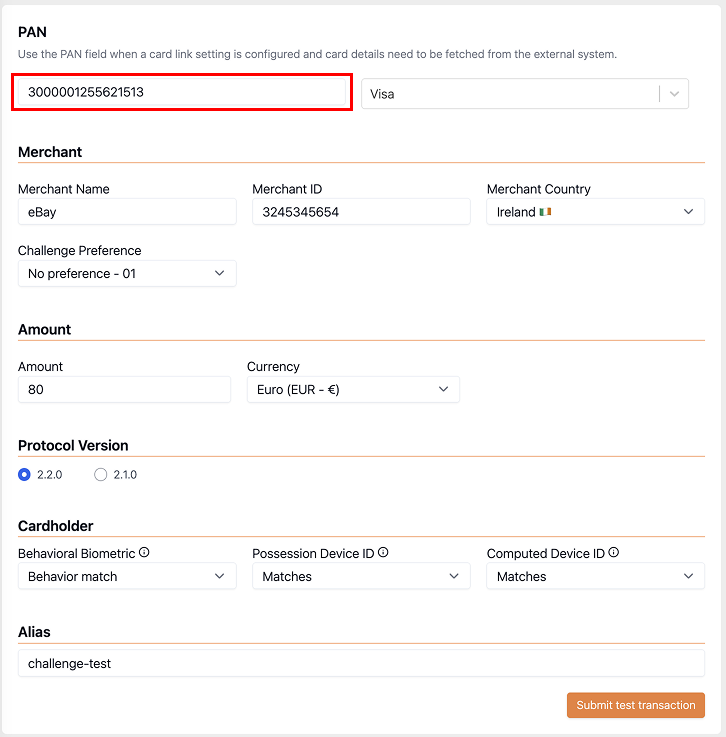
The system uses your Card Link settings to send a request to your configured endpoint.
See Card Link Guide for configuration details.
Submit raw AReq requests for full control over test scenarios.
- Navigate to the Advanced tab
- Select a predefined template (optional)
- Fill in required card fields:
acctNumber– PAN (any value, including live PANs)cardholderName– Cardholder namecardExpiryDate– Expiry date
- Click Submit
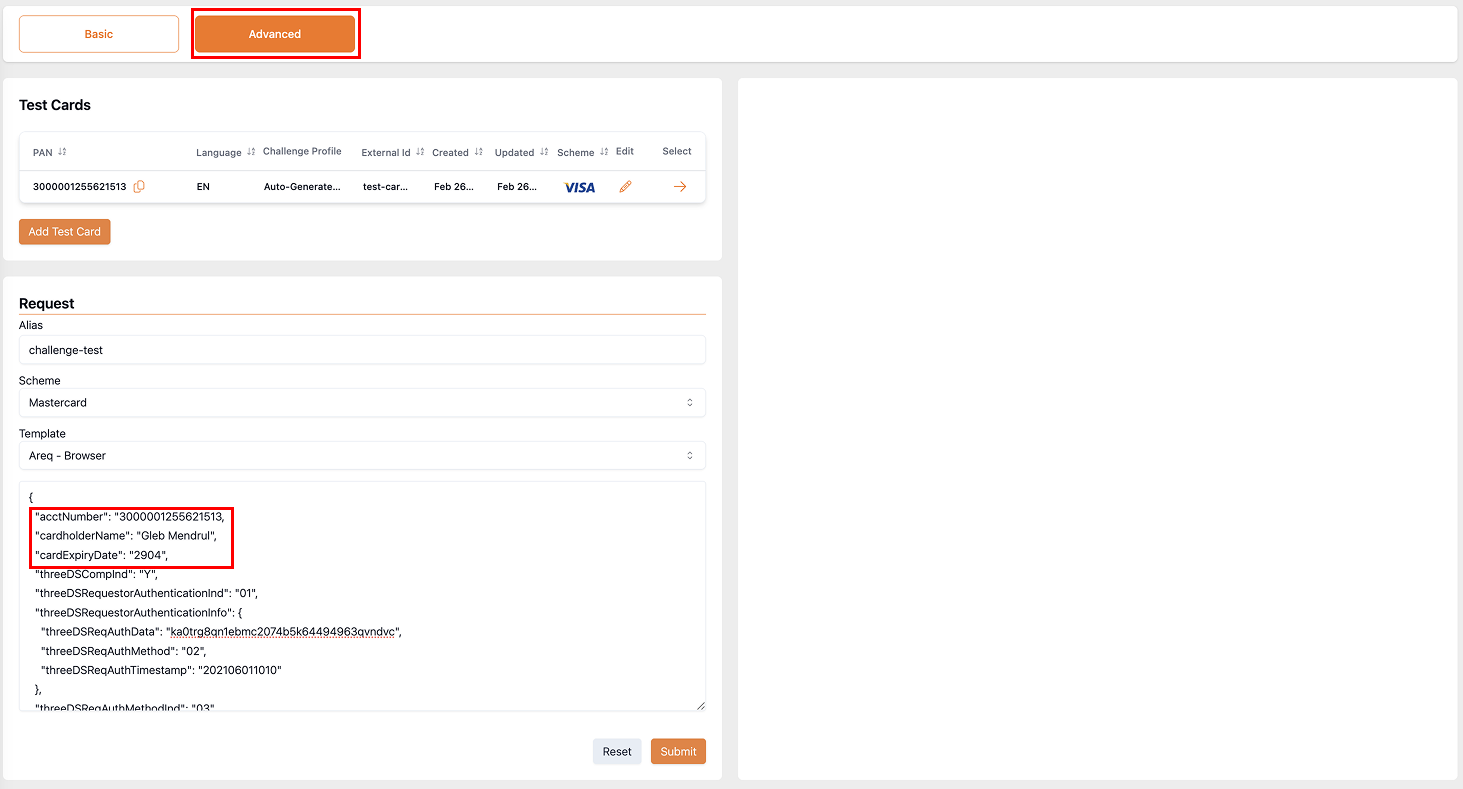
Advanced mode is useful for replicating live transactions. Copy the AReq from a live transaction and test it here.
You can use any PAN, including valid live PANs, in theacctNumberfield.
Related Topics
- Challenge Profile – Configure authentication methods
- Card Program – Group cards with shared settings
- Risk Profile – Define rules for transaction outcomes
- Card Link – Fetch card details in real time
Updated 6 months ago